



It offers a complete overview of each employee’s working time, allowing direct comparisons with the time tracking report.
The data includes: Date; User; Projected workload; Productivity (hours/day); Unproductivity (hours/day); Neutral (hours/day); Undefined; Inactive; Total/day.
This information helps you understand how each employee’s time was distributed and what portion of the workday was truly productive.
💡 Tip: Combine this report with the time tracking report to identify bottlenecks, task overload, or idle periods throughout the day.
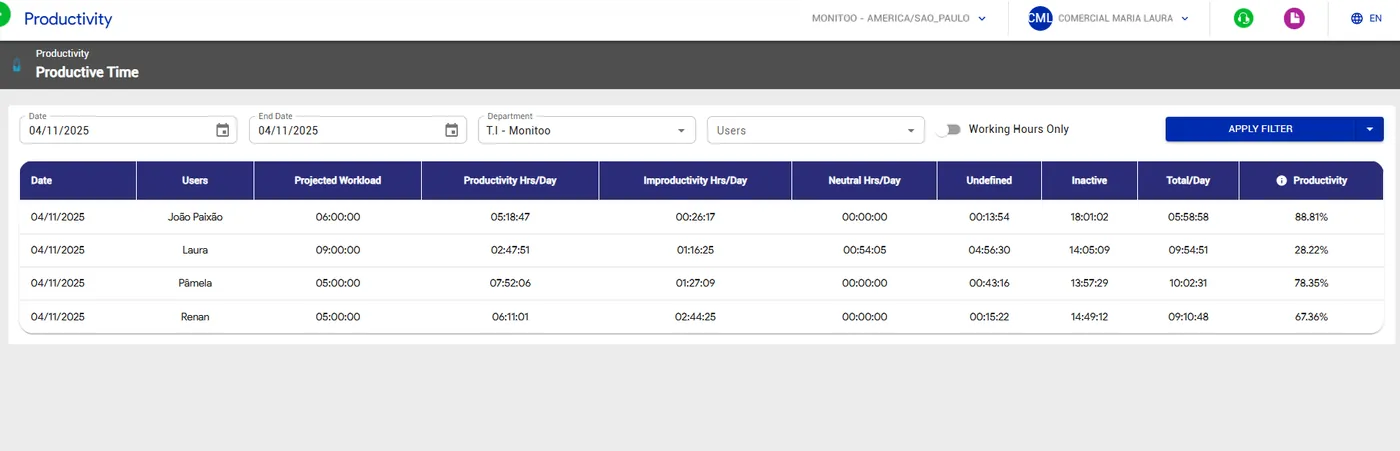
You can export the report to Excel and explore the data in more detail, making it easier to perform comparisons and customized analyses.
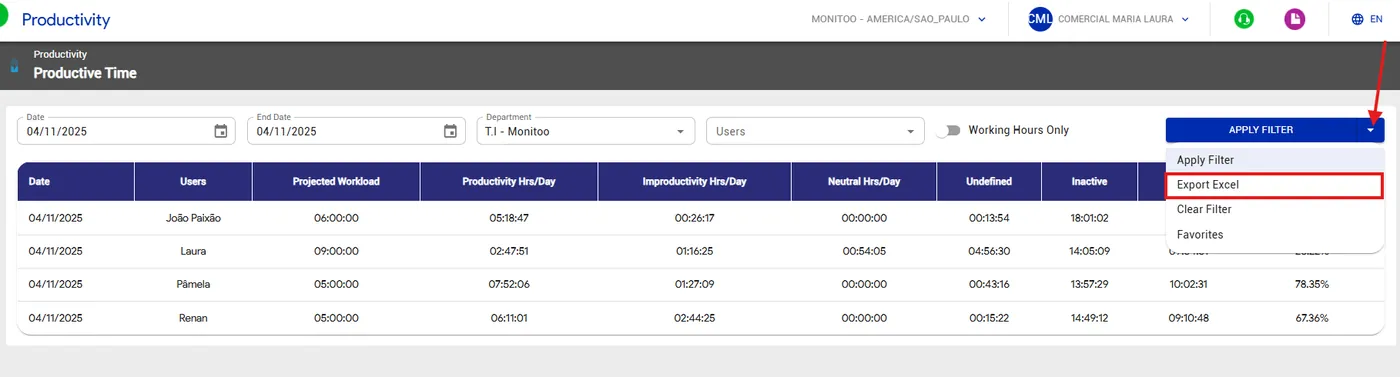
See how:
Great! Thanks for your feedback.
Tell our team what was missing: contact support on WhatsApp.
