



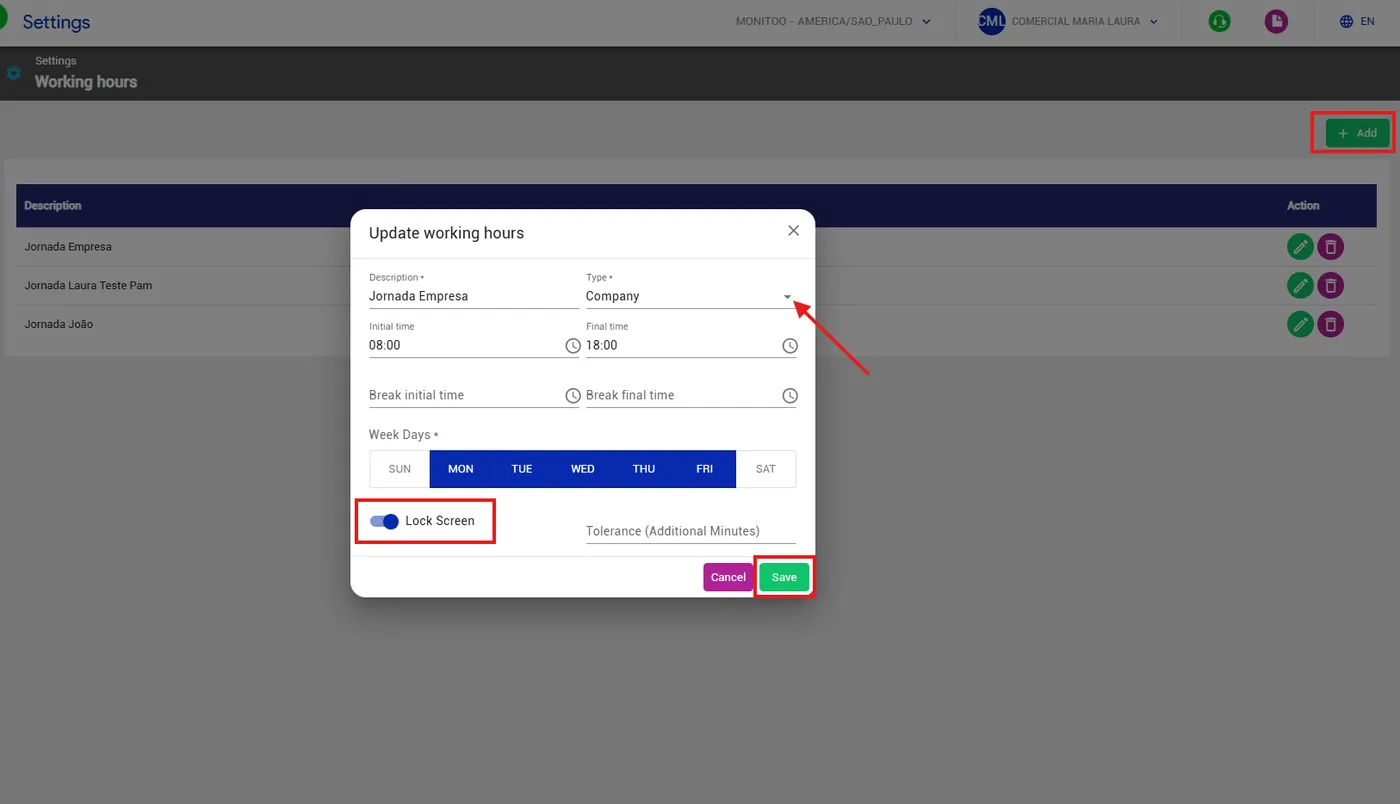
In the Work Schedule feature, you can configure the schedule for a specific employee, a department, or the entire company. You can set the start and end times, working days, and enable screen lock at the end of the shift.
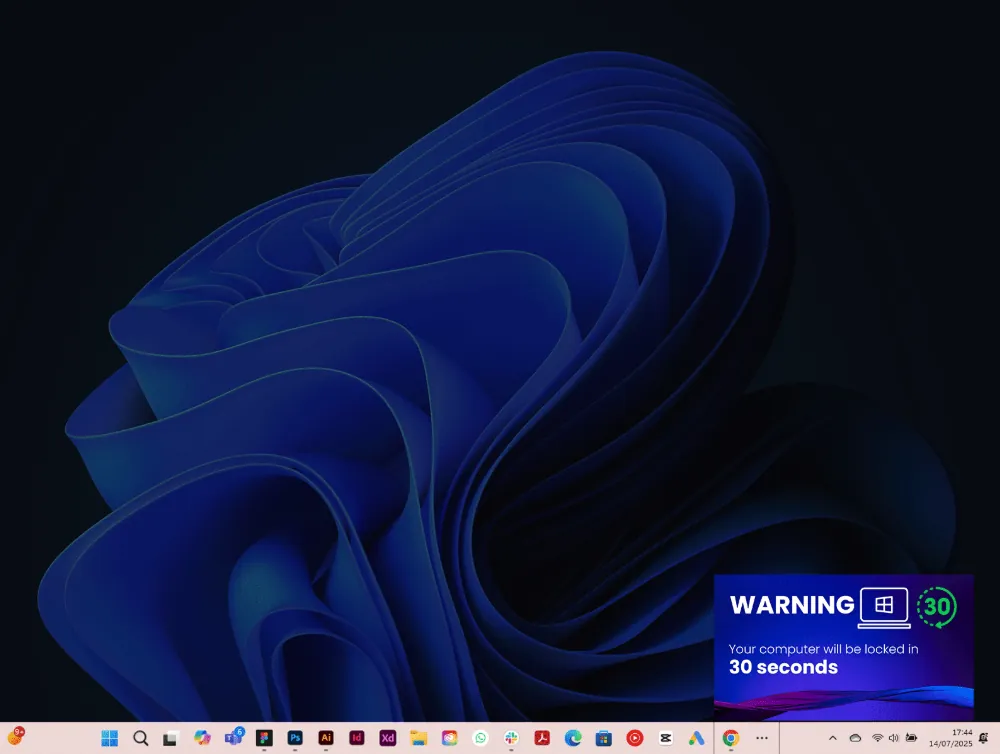
When this option is active, the employee receives a notification informing them that the screen will be locked in 30 seconds, helping prevent unauthorized overtime.
You can see an example below:
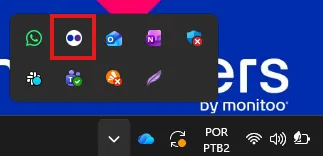
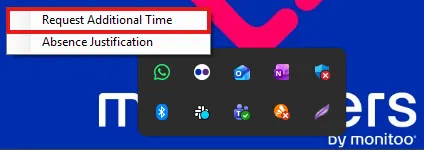
 Employees can request additional hours directly from their manager. To do this, simply access the Monitoo icon on the Windows taskbar, right-click it, and select the “Request Additional Time” option. See the example below.
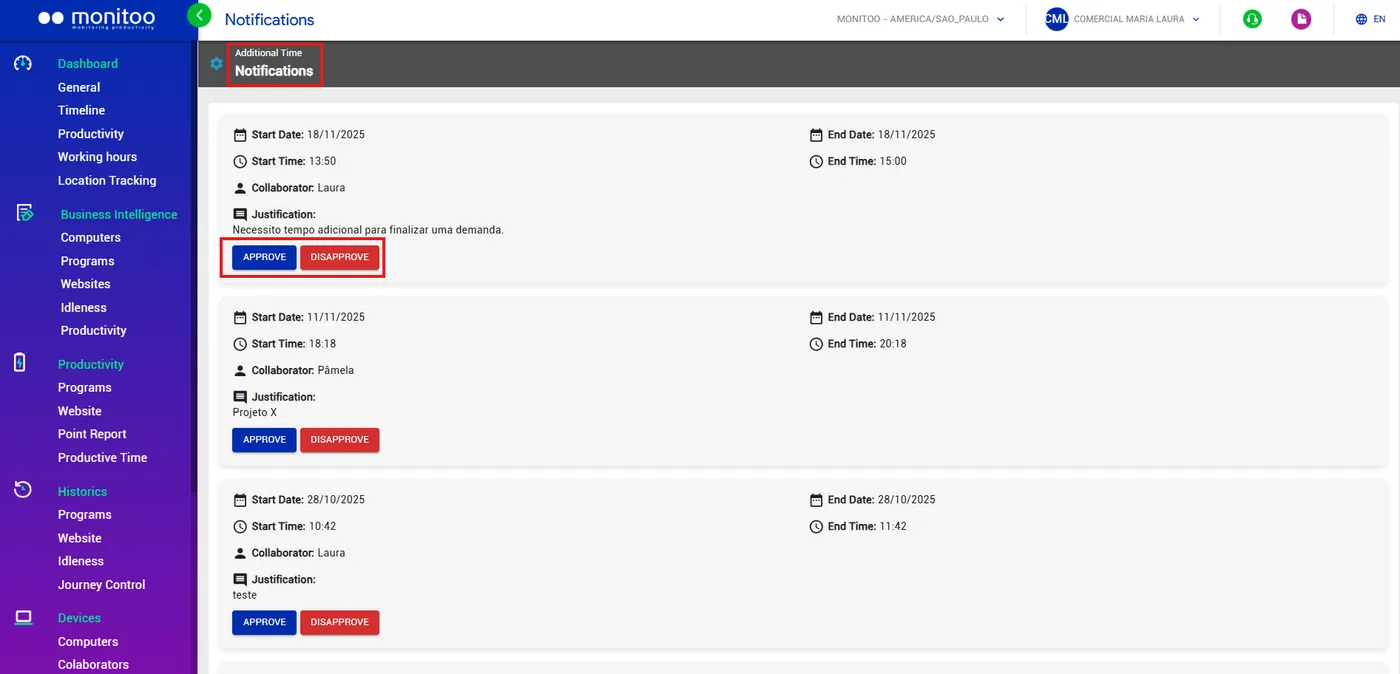
The manager receives this request directly in app.monitoo, where they can approve or deny it, as shown in the example below. In addition, an email is also sent notifying them about the extra time request, with a link that directs the manager to Monitoo to review and take action.
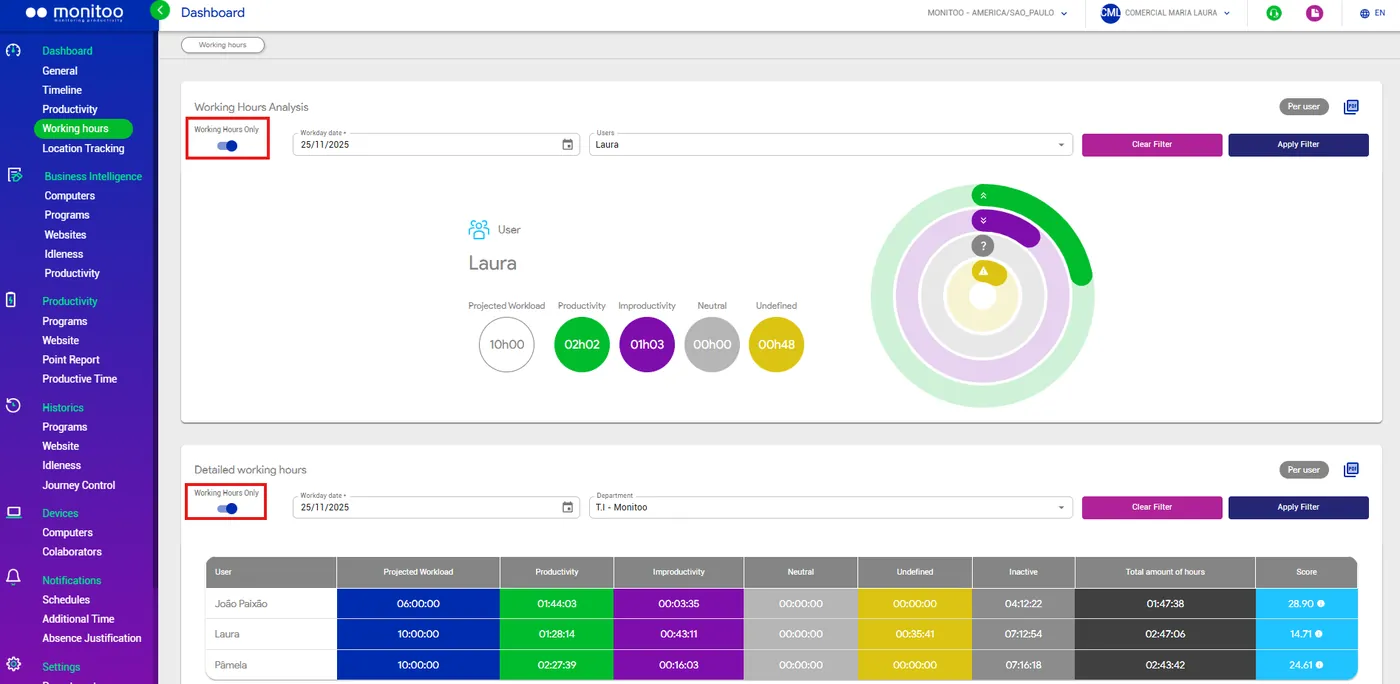
In addition to screen lock, you can also filter multiple dashboards to display only the period that corresponds to the defined work schedule. When this feature is enabled, the system disregards any activity performed before or after the registered work hours, showing only the information within each user’s official working time. As shown in the example below:
See how:
Great! Thanks for your feedback.
Tell our team what was missing: contact support on WhatsApp.
