



In this submenu, you can define whether programs and websites are Productive, Unproductive, or Neutral. These classifications will be reflected directly in the Timeline, Productivity, and Workday dashboards, ensuring that the presented indicators accurately represent the real usage of the computers.
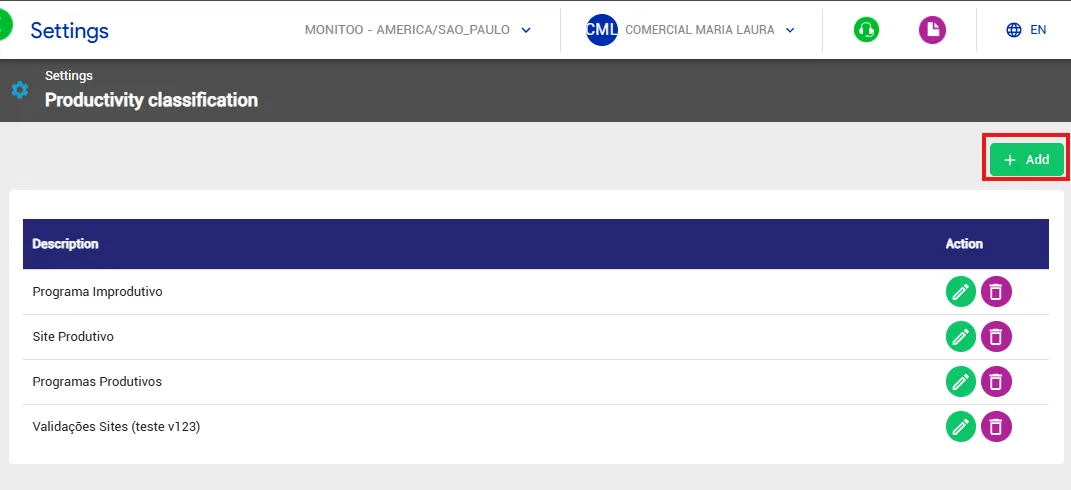
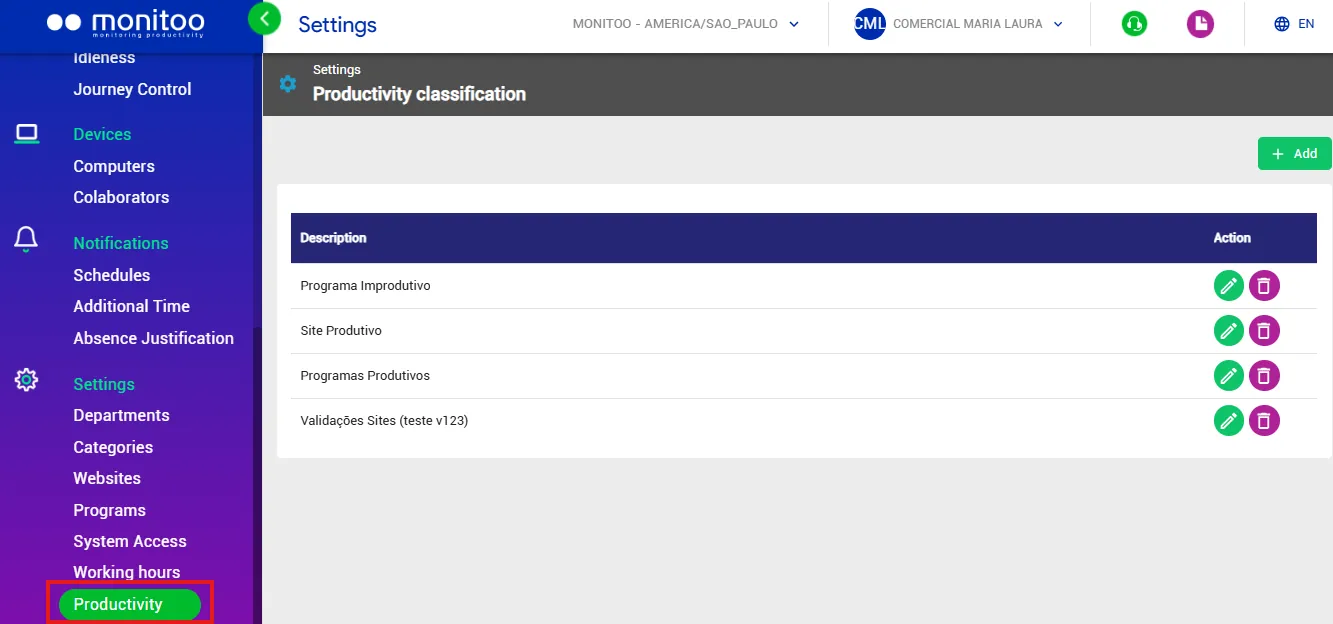 To add a new classification, click the Add button.
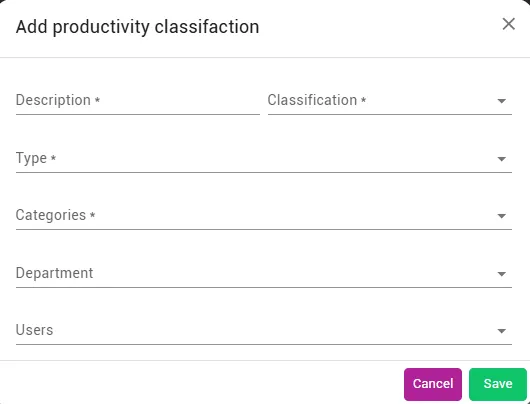
The addition window will open with the following fields: Description, Classification, Type, Categories, Departments, and User.
Description: a brief description of the classification.
Classification: defines whether the selected sites or programs will be marked as Productive, Unproductive, or Neutral.
Type: defines whether the settings will apply to programs or websites.
Categories: defines the categories that should be classified.
Departments and User: can be used to limit the computers to which the classification will be applied. You can select only certain departments or specific users, for example. This field is useful when different departments require different productivity settings.
In the examples below, we created two classifications: one with the description “IT – Productive Programs”, which classifies programs in the categories Management Applications, Business Applications, Documents, Browsers, Operating System, and Proprietary Software as productive; and another with the description “IT – Unproductive Programs”, which classifies programs in the Entertainment category as unproductive.
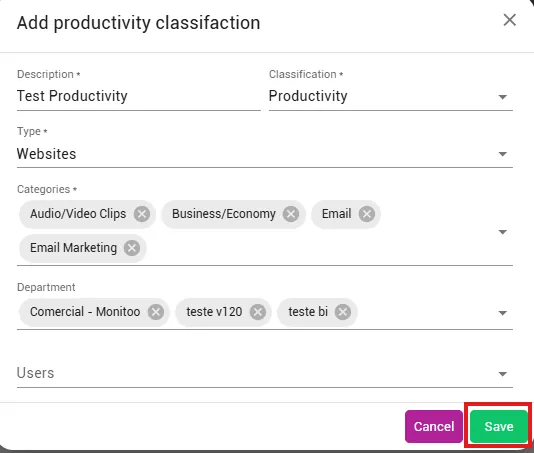 After saving, the settings begin to directly affect the dashboards.
Programs and websites that belong to categories defined as productive will be counted as productive time. Likewise, those classified as unproductive will be recorded as unproductive time.
This ensures that the reports accurately reflect real usage behavior, according to the configured classifications.
Great! Thanks for your feedback.
Tell our team what was missing: contact support on WhatsApp.
