



WMI and Local Libraries:
Monitoo uses the WMI service and other Windows operating system resources to monitor the machine and determine its status — whether it is active, idle, or in use.
At times, these components may fail, become corrupted, or present occasional errors.
When Monitoo displays unrealistic records (such as negative hours for an activity, idle time greater than total active time, or total monitored hours above 23:59 in a day), the underlying cause is most likely a problem with these Windows system resources.
To fix this, we recommend following the steps below to reset the default WMI repository and fully reinstall Monitoo.
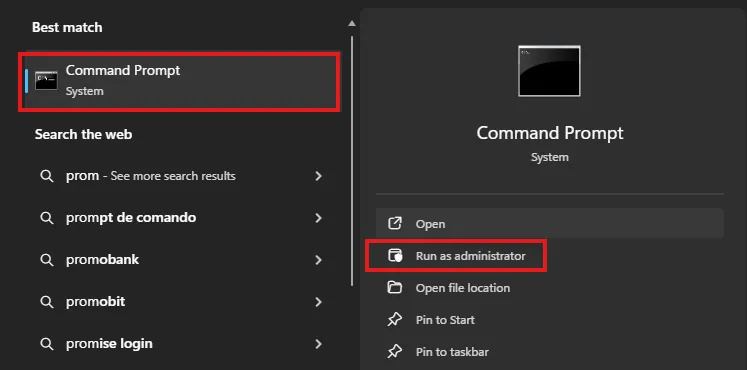
Open a Command Prompt with Administrative privileges.
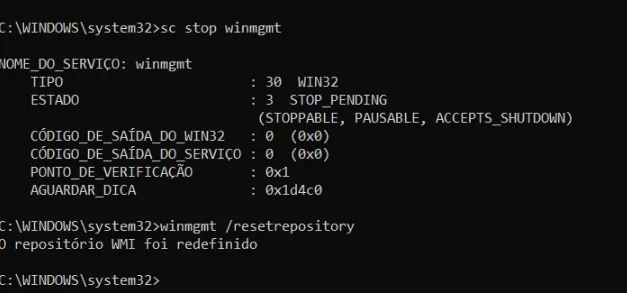
 Type and press Enter for the following commands:sc stop winmgmt winmgmt /resetrepository
Completely Reinstall Monitoo:
You can uninstall the software via the command line (the fastest method) or manually.
Command Line
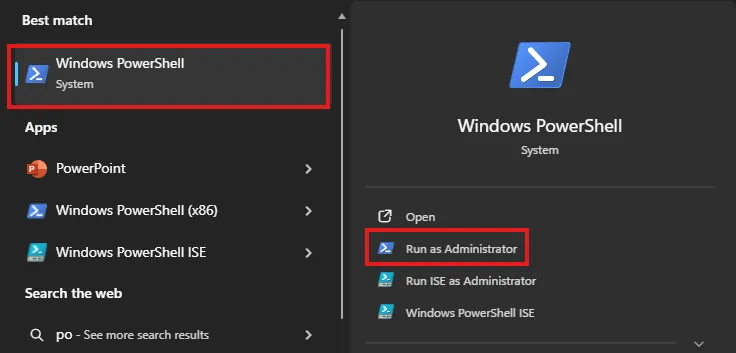
Open a Windows PowerShell Prompt as Administrator:
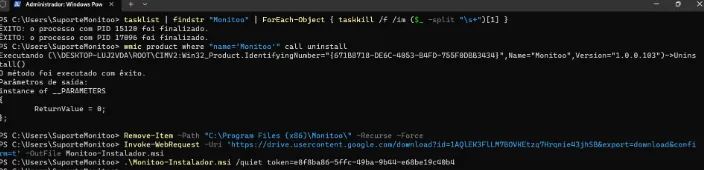
tasklist | findstr "Monitoo" | ForEach-Object { taskkill /f /im ($_ -split "\s+")[1] }wmic product where "name='Monitoo'" call uninstallRemove-Item -Path "C:\Program Files (x86)\Monitoo\" -Recurse -Force
Note: Replace [company_token] with the token found under My Data on the Monitoo dashboard.
Manual:
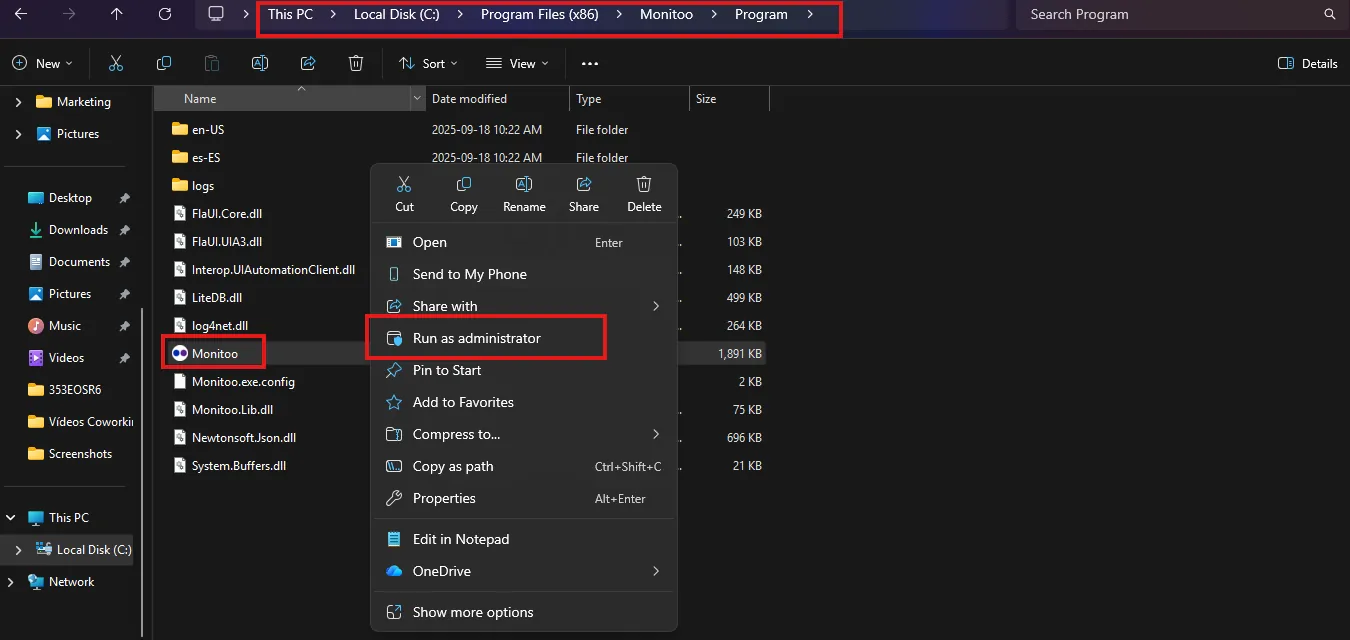
Open File Explorer, navigate to
`C:\Program Files (x86)\Monitoo\Program`
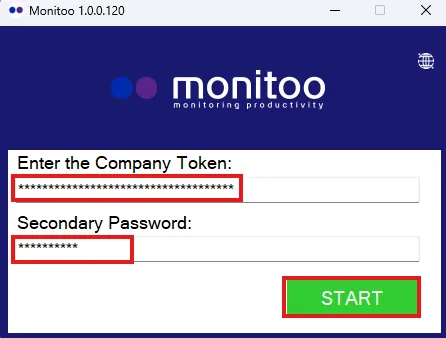
and run the file Monitoo.exe as Administrator.
In the program window, enter the company token and password (both can be found under My Data on the Monitoo dashboard).
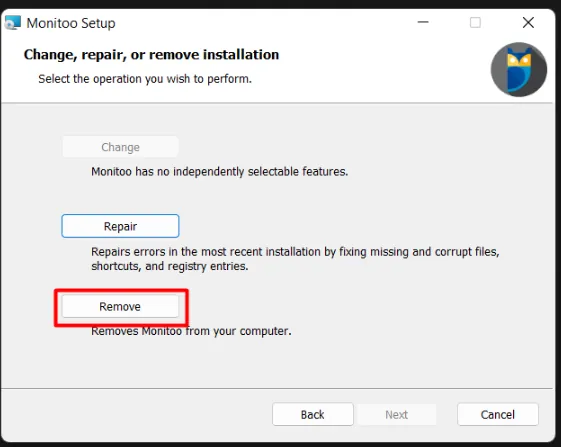
Run the installer that was originally used to install Monitoo on the machine and select the Remove option to complete the uninstallation.
Delete the Monitoo folder located at
`C:\Program Files (x86)\`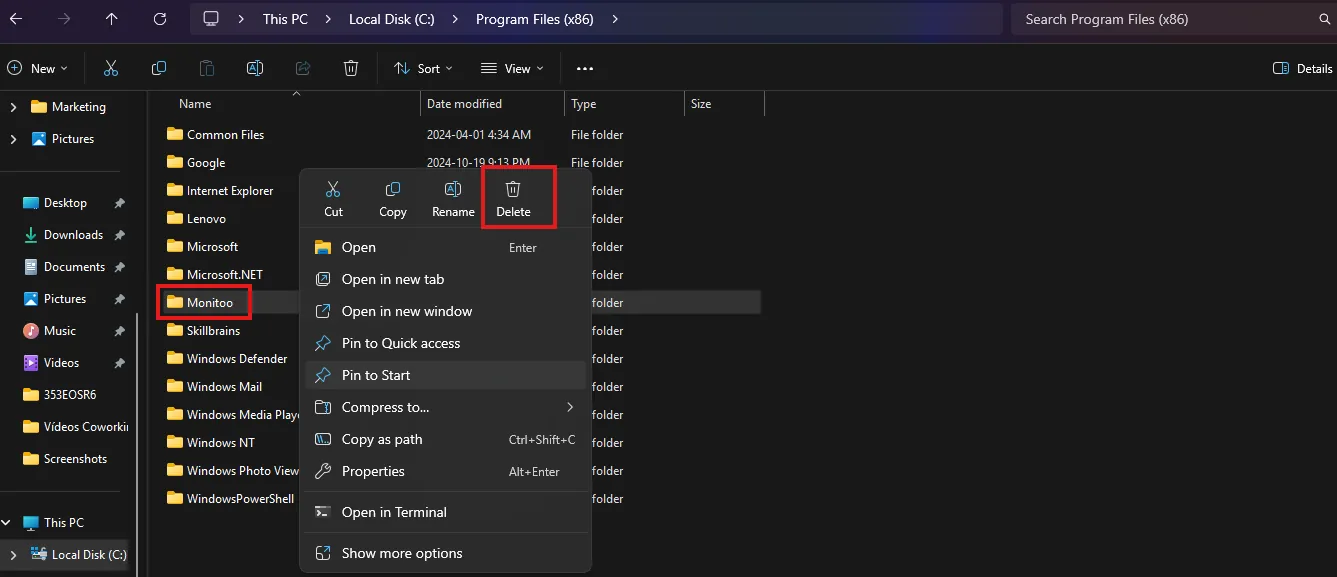
After that, download the latest installer and perform the installation normally.
You can view this process in the Software Installation documentation.
Great! Thanks for your feedback.
Tell our team what was missing: contact support on WhatsApp.
